
Home
Download
TV
PC
Firestick
GET APP
Open menu
Home
Tv
How to Download and Install TepiCine on Smart TV
TepiCine allows users to stream content directly on Android-based Smart TVs. Many families want easy access to shows, anime, and live sports on their television. The application TepiCine is fully compatible with Android-based Smart TVs and brings mobile entertainment to the living room.
This guide explains how to install the app on your TV step by step. You will also learn about the TV-friendly design in version 2.0.8 and how to claim the special bonus for new TV users.
Download TepiCine App
Why Use TepiCine on Your Smart TV?
Using TepiCine on a Smart TV provides a more comfortable and immersive way to watch content compared to mobile devices. The TV version optimizes Full-HD playback for large displays, ensuring clearer visuals and smoother performance while navigating with a remote control.
The Ultimate Big Screen HD Experience
TepiCine para TV is designed to deliver stable streaming with improved playback performance. Version v2.0.8 reduces buffering and enhances video stability so movies, shows, and live sports play smoothly on larger displays. This makes the app suitable for extended viewing sessions and home entertainment.
Family-Friendly Viewing with Parental Controls
The TepiCine app includes a 5-level content rating system. Parents can control what children watch by setting age filters. This helps keep viewing safe for younger family members.
Families can enjoy different types of content without worrying about inappropriate shows.
Exclusive Benefits for TepiCine TV Users
Installing the app on a Smart TV gives extra advantages not available on smaller devices. These benefits improve comfort and convenience for home viewing.
Claim Your 5-Day Free Premium Trial
New users who install TepiCine on their TV receive a free 5-day Premium trial. During this time, you can watch without ads and access all content. This helps you test the full experience before choosing a paid plan.
Support for Multiple Televisions
Premium accounts allow streaming on multiple devices. You can watch on up to three phones and two TVs at the same time. The app TepiCine makes it easy for families in different rooms to enjoy content together.
Step-by-Step Guide to Install TepiCine on Android TV
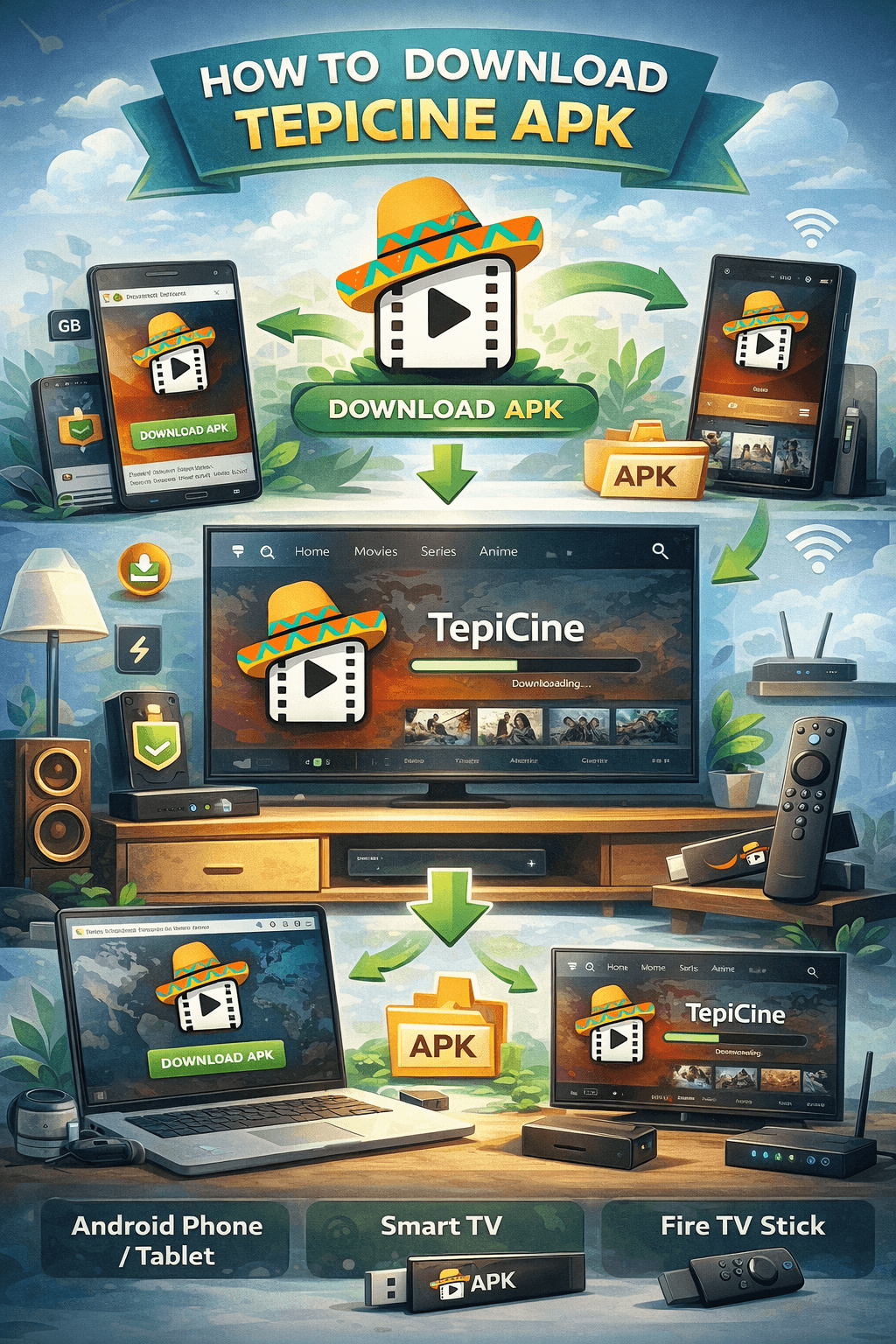
Installing the app on a Smart TV requires a few simple steps.
Installation Guide for Smart TV (Android TV)
Installing the TepiCine APK on an Android Smart TV allows you to watch content on a larger display. Follow the steps below to install the app on your television.
Step 1: Enable Installation from Unknown Sources
Open
Settings
on your Android TV.
Navigate to
Device Preferences
or
Security
.
Find the option
Install Unknown Apps
.
Enable the permission for apps that will install the APK.
Step 2: Install the Downloader App
Open the
Google Play Store
on your Smart TV.
Search for the
Downloader
application.
Download and install the Downloader app on your TV.
Step 3: Download the TepiCine APK
Launch the
Downloader
app.
Enter the APK download link in the URL field.
Press
Go
to start downloading the installation file.
Wait for the download to finish.
Step 4: Install the App on Your TV
Once the download completes, the installation prompt will appear.
Select
Install
to install the TepiCine APK.
After installation finishes, open the app from your TV’s app menu.
Step 5: Watch on the Big Screen
Launch the TepiCine app on your Smart TV.
Browse movies, shows, and live entertainment.
Select a title and enjoy streaming on your television.
Installation on Fire TV Stick
Fire TV Stick users can also install the TepiCine APK easily. Follow these steps to set up the app.
Step 1: Allow Apps from Unknown Sources
Go to
Settings
on your Fire TV Stick.
Open
My Fire TV
.
Select
Developer Options
.
Turn on
Apps from Unknown Sources
.
Step 2: Install the Downloader Application
From the Fire TV home screen, open
Search
.
Type
Downloader
and select the app.
Download and install the Downloader app.
Step 3: Download the APK File
Open the
Downloader
app.
Enter the TepiCine APK download link in the URL field.
Press
Go
to begin downloading.
Step 4: Install the Application
When the download completes, the installation screen will appear.
Select
Install
to install the app.
Wait for the process to finish.
Step 5: Open the App
Once installation is complete, launch the app from your Fire TV apps section.
Browse the library and start watching content on your TV screen.
Alternative Method: Install Using a USB Drive
If your Smart TV does not support direct downloads, you can install the APK using a USB drive.
Step 1: Download the APK File
Download the TepiCine APK on your computer or smartphone.
Step 2: Copy the File to a USB Drive
Connect a USB drive to your computer.
Transfer the APK file to the USB drive.
Step 3: Connect the USB to Your Smart TV
Insert the USB drive into the TV’s USB port.
Open a
file manager
on your Smart TV.
Locate the APK file stored on the USB drive.
Step 4: Install the Application
Select the APK file and choose
Install
.
Once installation completes, open the app from your TV’s app list.
You can now start watching movies and shows directly on your Smart TV.
Final Verdict
Installing
TepiCine
on your Android Smart TV is quick and simple. Once installed, you can access a huge library of movies, shows, anime, and live sports directly from your television. With easy navigation and useful features like parental controls, the app provides a convenient entertainment experience for viewers of all ages.
Install TepiCine on your Smart TV today, claim your free 5-day Premium trial, and start exploring unlimited entertainment—turning your TV into a powerful daily viewing hub.
FAQs
Does TepiCine work directly on Samsung or LG Smart TVs?
No, TepiCine is an Android APK. Samsung and LG TVs use different systems. You need an Android TV box or Firestick to run the app on those devices.
How do I activate the 5-day free TV premium trial?
Install the app on your Android TV and register as a new user. The free trial will be added to your account automatically.
Can I watch live sports on my Smart TV with TepiCine?
Yes, the app includes a sports section where you can stream matches and view team lineups directly on your TV.
Do I need the internet to watch TepiCine on my Smart TV?
Yes, you need an internet connection to stream movies, shows, and live sports. If you download videos inside the app, you can watch them later without the internet.
What should I do if TepiCine is not working on my Smart TV?
Restart your TV and check your internet connection first. If the problem continues, reinstall the app or install the latest version to fix errors.